How to Move the Plex Data
Directory in Windows
If your Plex Media Server instance contains a lot of media files, then it
may make sense to move the Plex data directory in Windows to another location.
The default location of the data
directory is on
the system drive, so if that drive in your Plex server is small, then you may
want to look at moving the data directory.
Moving
the directory, however, is not as easy as changing a setting in the Plex Media Server settings. The reason is that the setting
does not exist. Changing the location of the data directory is a manual process
that is done outside of Plex.

Moving the Plex data directory in Windows
To change
the Plex data directory in Windows, use the following steps:
- Log onto your Plex server as
the user account that is running the Plex Media Server instance.
- Stop the Plex instance
running on the server by right-clicking the Plex system tray icon and the
select Exit. If Plex is running as a service, you should just stop that
service.
- Click the Start button and
type services.msc – the Services app
should be displayed in the search results. Right-click the Services app
and select the Run as administrator option.
- In the Services list,
scroll down until your see the Plex Update Service service. Right-click the service and select the Stop
option from the context menu.
- Open Windows Explorer and
navigate the Plex data directory, which is here by default:
%LOCALAPPDATA%\Plex Media Server {C:\Users\username\AppData\Local}
- Copy the contents of the
Plex data directory to the new location, for example:
M:\Plex\Plex Media Server
The copy process can take several hours, depending
on the size of your media library.
- Once the copy has completed,
click the Start button and type regedit.exe and the open the
registry editor.
- Navigate to the following
key in the registry:
HKEY_CURRENT_USER\Software\Plex, Inc.\Plex Media
Server
- If the value LocalAppDataPath does not exist in the list on
the right, right-click an empty area in the list and select New->String
Value. Name the value LocalAppDataPath.
- Double-click the LocalAppDataPath value and enter the path to the new
Plex data directory. Do not include the Plex Media Server folder in the
path. For my example above, the LocalAppDataPath
data value will be:
M:\Plex
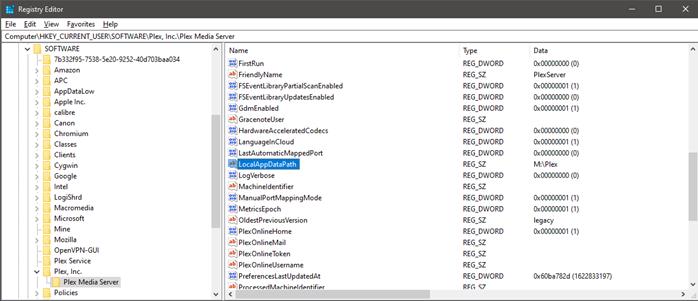
The Plex LocalAppDataPath
value in the Windows registry
- Close the registry editor.
- Restart the computer to have
all the Plex services and processes restart and begin to use the new data
directory location.
Notes about moving the data directory in Windows
While
moving the Plex data directory can be done, there are a few points to consider
before moving the directory:
- The file system where the
data directory is located must be NTFS.
- The data directory cannot be
located on a network share.
- Don’t point the data
directory to the root directory of a drive – specify a folder on the
drive.
- For performance, you may
want to ensure the data directory is on an SSD, and not a spinning hard
disk.
The above
sections outline how to move the Plex data directory in Windows to a new
location. If the system drive in your server is low on drive space, moving the
Plex data to another drive could help free up much needed space.
See also: